> For the complete documentation index, see [llms.txt](https://docs.compliance.phalcon.blocksec.com/llms.txt). Markdown versions of documentation pages are available by appending `.md` to page URLs; this page is available as [Markdown](https://docs.compliance.phalcon.blocksec.com/manual/monitoring/monitor.md).
# Monitoring
Monitoring continuously tracks risk changes for addresses you care about and sends notifications through your configured channels when updates are detected—without requiring manual rescreening.
## What Is Monitoring
Enable monitoring for any screened address, and Phalcon Compliance will automatically reanalyze it on a dynamic schedule. When a risk change is detected—such as a new alert being triggered, an alert expiring, or the overall risk level changing—you will receive a notification through your configured channels.
## Availability
* **Essential and Scale**: Includes 1 monitored address. Add more through the monitoring add-on. See [Plans, Billing, and Payments](/manual/account/plans-billing-and-payment.md#monitor-add-on) for details.
* **Free and Credits**: 7-day free trial (limited to once per account). Upgrade to continue using it.
* **Enterprise**: Custom capacity based on your contract.
## Starting and Stopping Monitoring
You can enable monitoring from:
* **Address Details page** — Click the **Monitor** button in the top action area.
* **Address List** — Use the action menu on the right side of any row.
To stop, click **Stop Monitoring** from either of the locations above or from the Monitoring management page.
## Setting Up Notifications
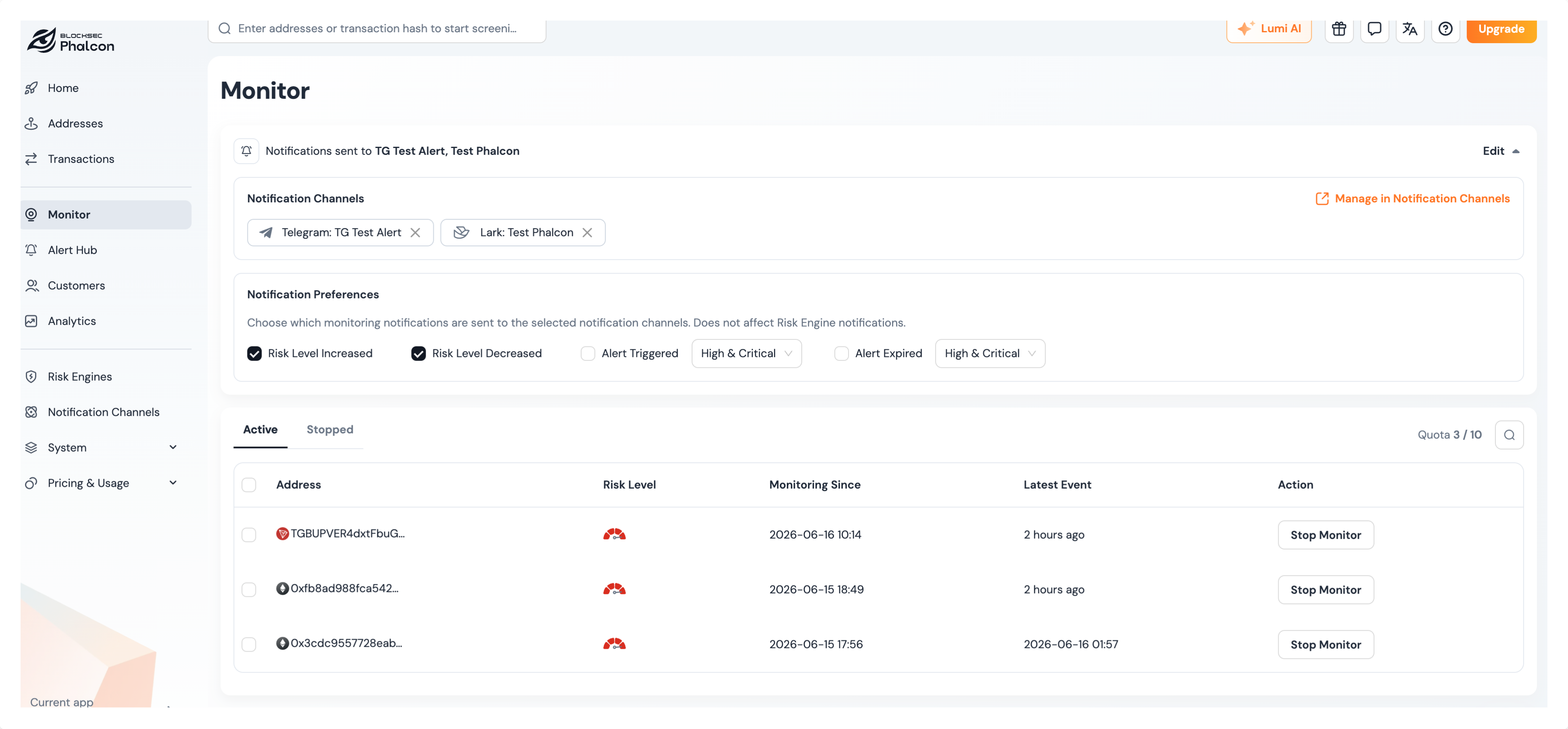
Monitoring events are delivered separately from Risk Engine alerts. To receive them:
1. Go to **Notification Channels**, open a channel, and enable **Monitoring Events**.
2. On the **Monitoring** page, click **Edit** to select which events trigger notifications:
| Event Type | Severity Filter |
| -------------------- | ------------------------------------- |
| Risk level increased | — |
| Risk level decreased | — |
| Alert triggered | All / High & Critical / Critical only |
| Alert expired | All / High & Critical / Critical only |
All four event types are enabled by default.
## Monitoring List
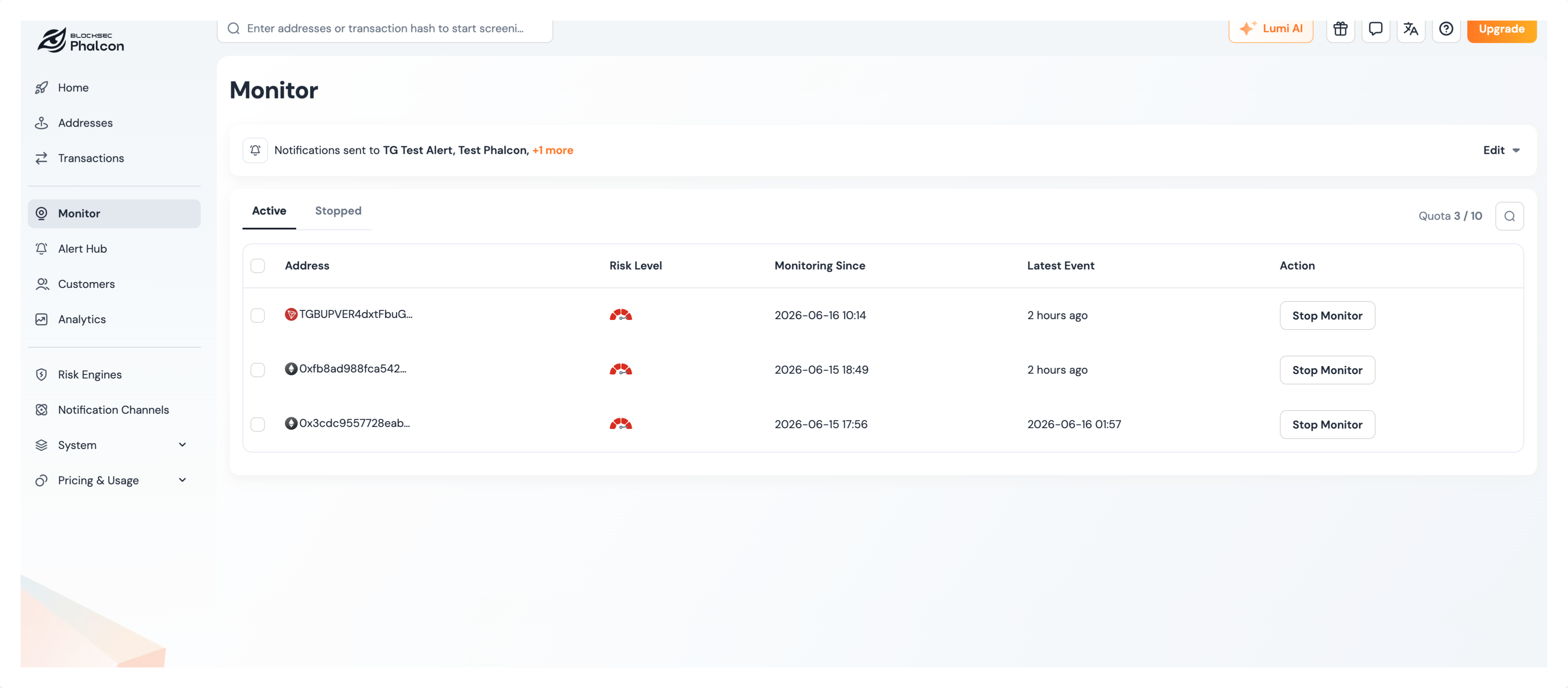
Monitoring is a top-level item in the sidebar. The page has two tabs:
**Active** — Addresses currently being monitored, showing the chain, risk level, monitoring start time, and latest event.
**Stopped** — Addresses that are no longer being monitored, showing when and why monitoring stopped. If quota is available, you can **Resume** stopped monitoring.
Your current quota usage is displayed in the toolbar.
## Monitoring Details Page
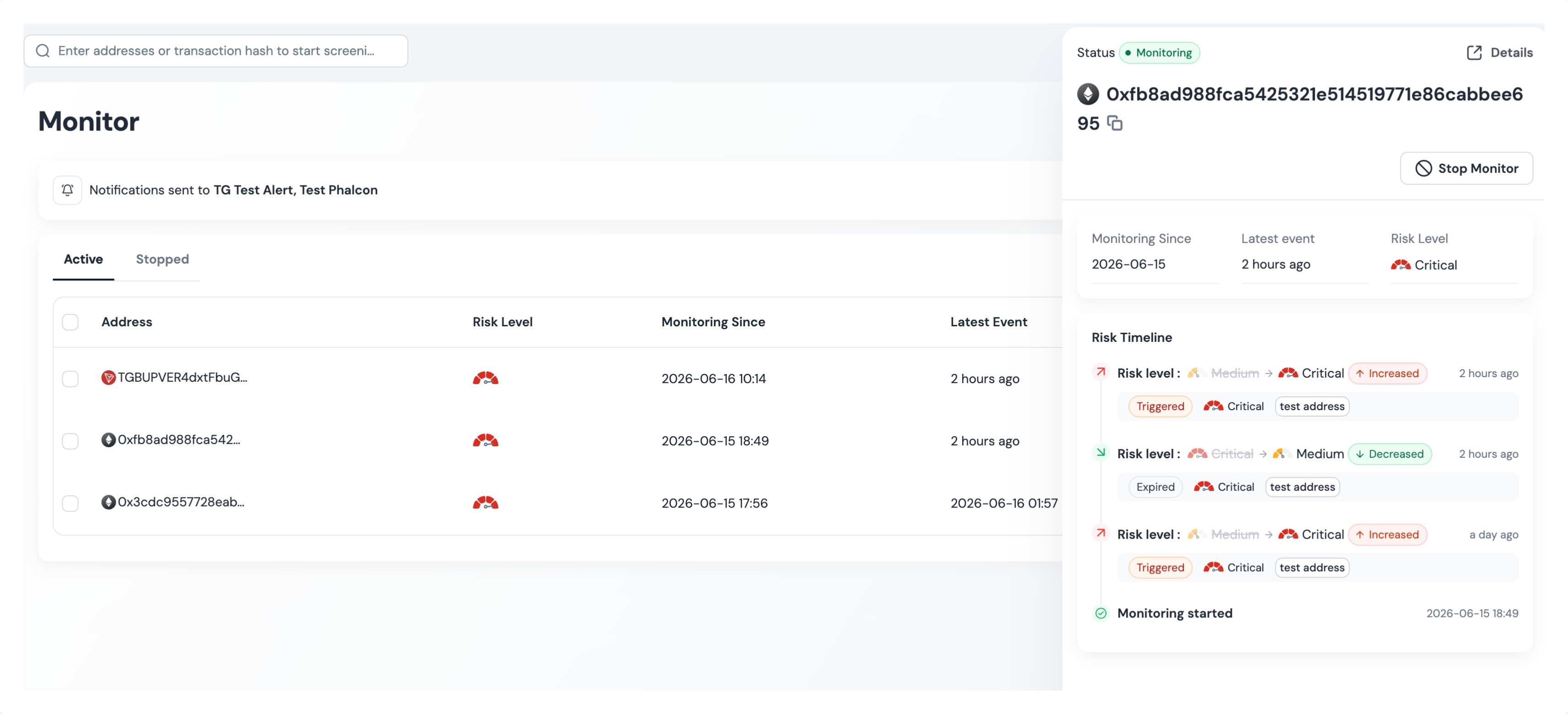
Click any address in the monitoring list to view its details page, which includes:
* Current status, chain, risk level, and monitoring start time
* Actions to stop or resume monitoring
### Risk Timeline
A chronological history of everything that occurred while the address was monitored:
* **Monitoring Started / Stopped** — When monitoring began or ended.
* **Risk Level Changed** — Shows the previous and new levels, as well as the alerts that caused the change.
* **Alert Triggered / Expired** — Individual alert events that did not cause a level change.
The timeline is complete and unfiltered—it records all events regardless of your notification trigger settings.
## Notification Message Types
Monitoring sends four types of notifications:
* **Risk Level Increased** — The address's risk level has increased, with the relevant alerts listed.
* **Risk Level Decreased** — The address's risk level has decreased, with the expired alerts listed.
* **Alert Triggered** — A new alert was detected without changing the risk level.
* **Alert Expired** — An alert expired without changing the risk level.
Each message includes the address, chain, current risk level, and a link to the monitoring details page.